How to add captions in DaVinci Resolve
DaVinci Resolve Studio can write subtitles from your audio with Create Subtitles from Audio in the Timeline menu. The free DaVinci Resolve cannot, so there you type them or import an .srt file. For animated captions on Reels, TikTok and Shorts, use titles or a caption pack.
By Victor Grubbe. Updated
How to Use The Caption Creator Pack in DaVinci Resolve
How do you add automatic subtitles in DaVinci Resolve?
This needs DaVinci Resolve Studio.
- 1
Open your timeline on the Edit page.
- 2
Open the Timeline menu and pick Create Subtitles from Audio. In newer versions it sits under AI Tools.
- 3
Pick the language and how many characters fit on a line, then press Create.
- 4
DaVinci Resolve adds a subtitle track. Click a subtitle to fix a word in the Inspector.
How do you add captions in the free DaVinci Resolve?
The free version has subtitle tracks, but it does not write them for you. You have two options.
- 1
By hand: right-click the track headers, pick Add Subtitle Track, then add each subtitle and type it in the Inspector.
- 2
From a file: make an .srt file in a transcription tool, then use File > Import > Subtitle and drag it onto the timeline.
Why do DaVinci Resolve subtitles look plain?
A subtitle track has one style for the whole track, and its words do not animate. That is right for a film or an interview. The captions you see on Reels, TikTok and Shorts are built from titles instead, so each line can have its own look and animation.
How do you make animated captions for Reels, TikTok and Shorts?
The Caption Creator Pack is a library of caption titles. You drag one on and type the line.
- 1
Open the Effects panel, go to Titles and open the Neo Caption Creator Pack folder.
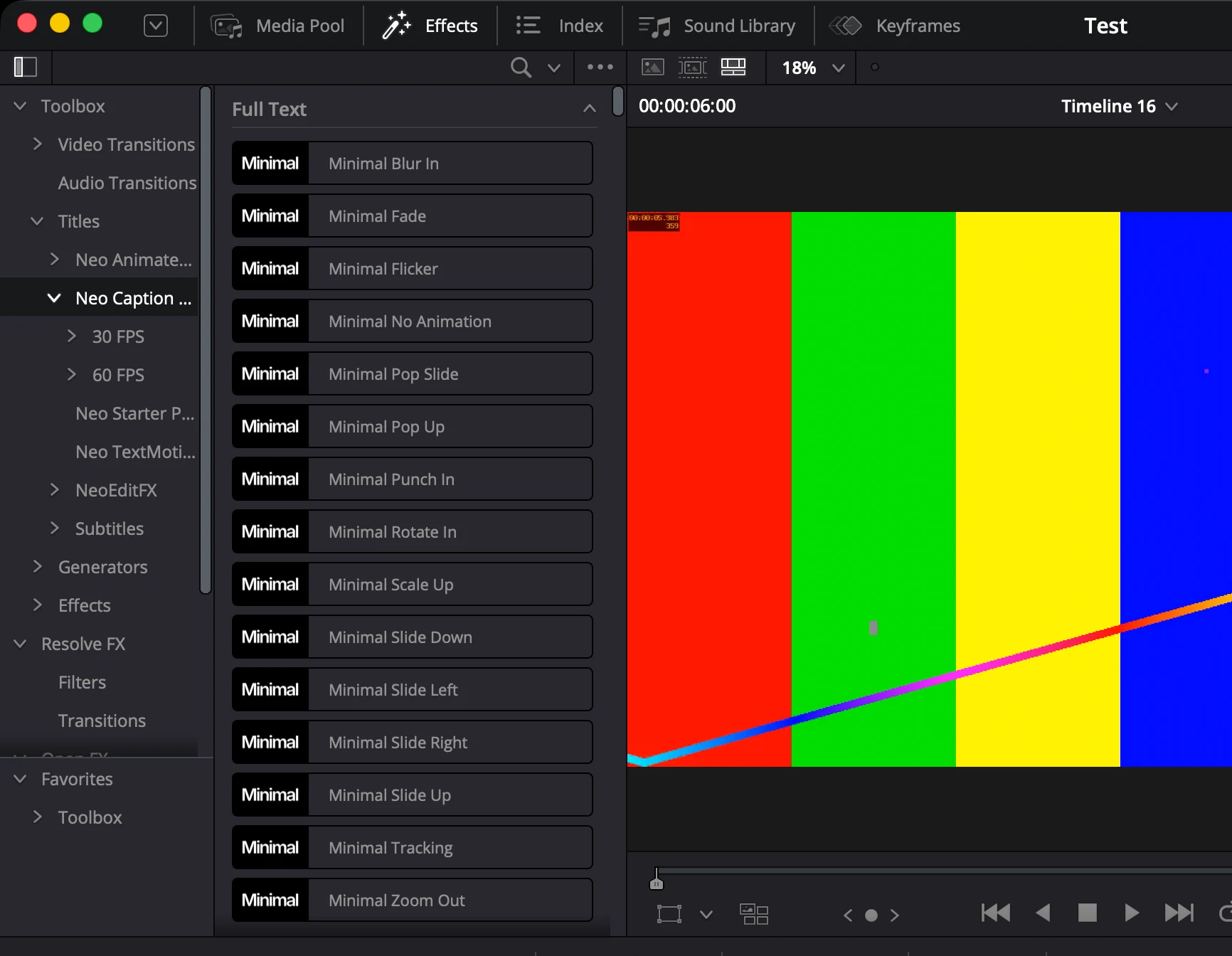
- 2
Open the 30 FPS or the 60 FPS folder, the one that matches your timeline, and pick one of the 10 styles.
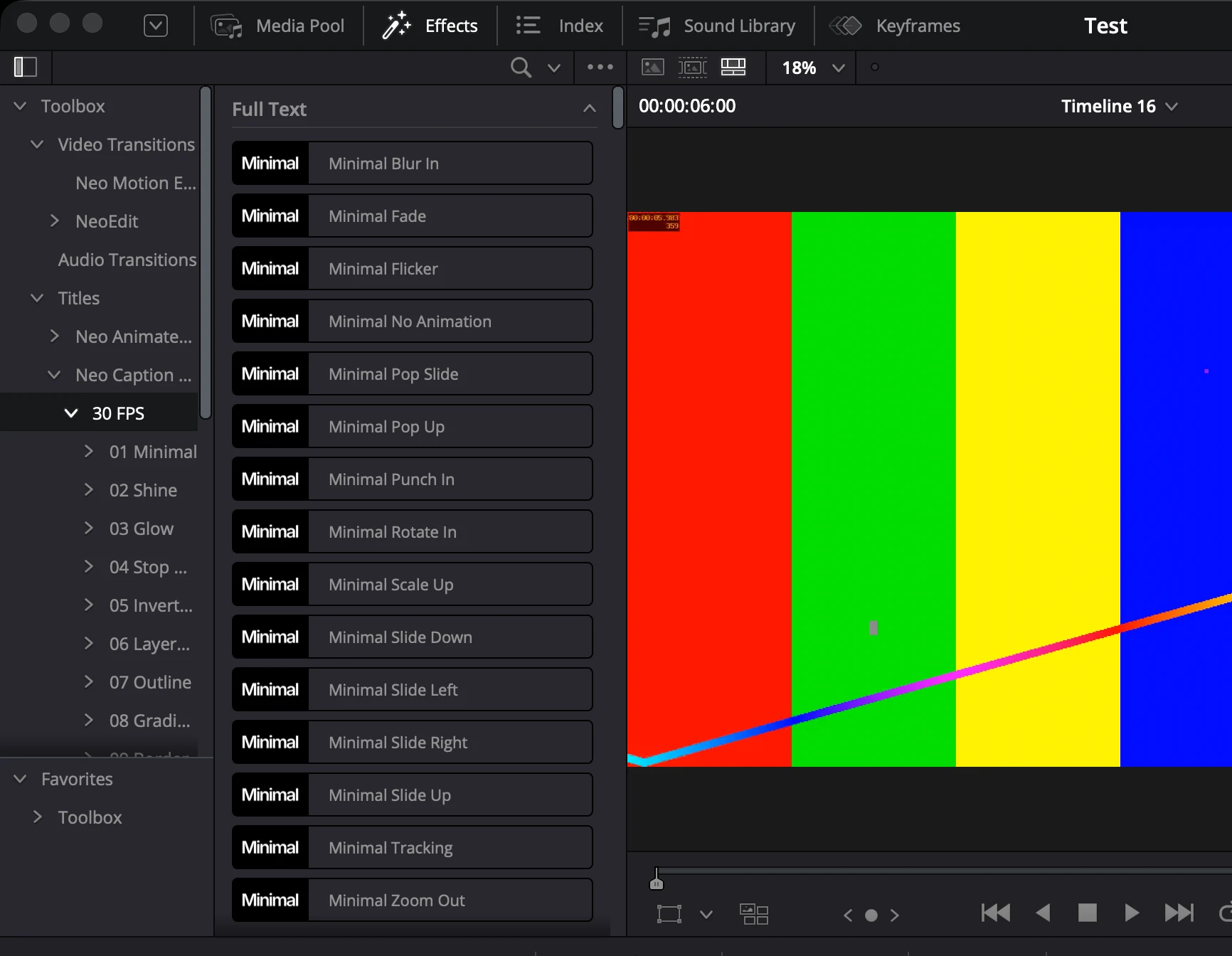
- 3
Pick Full Text, Letter or Word, and drag a caption onto a track above your clip.
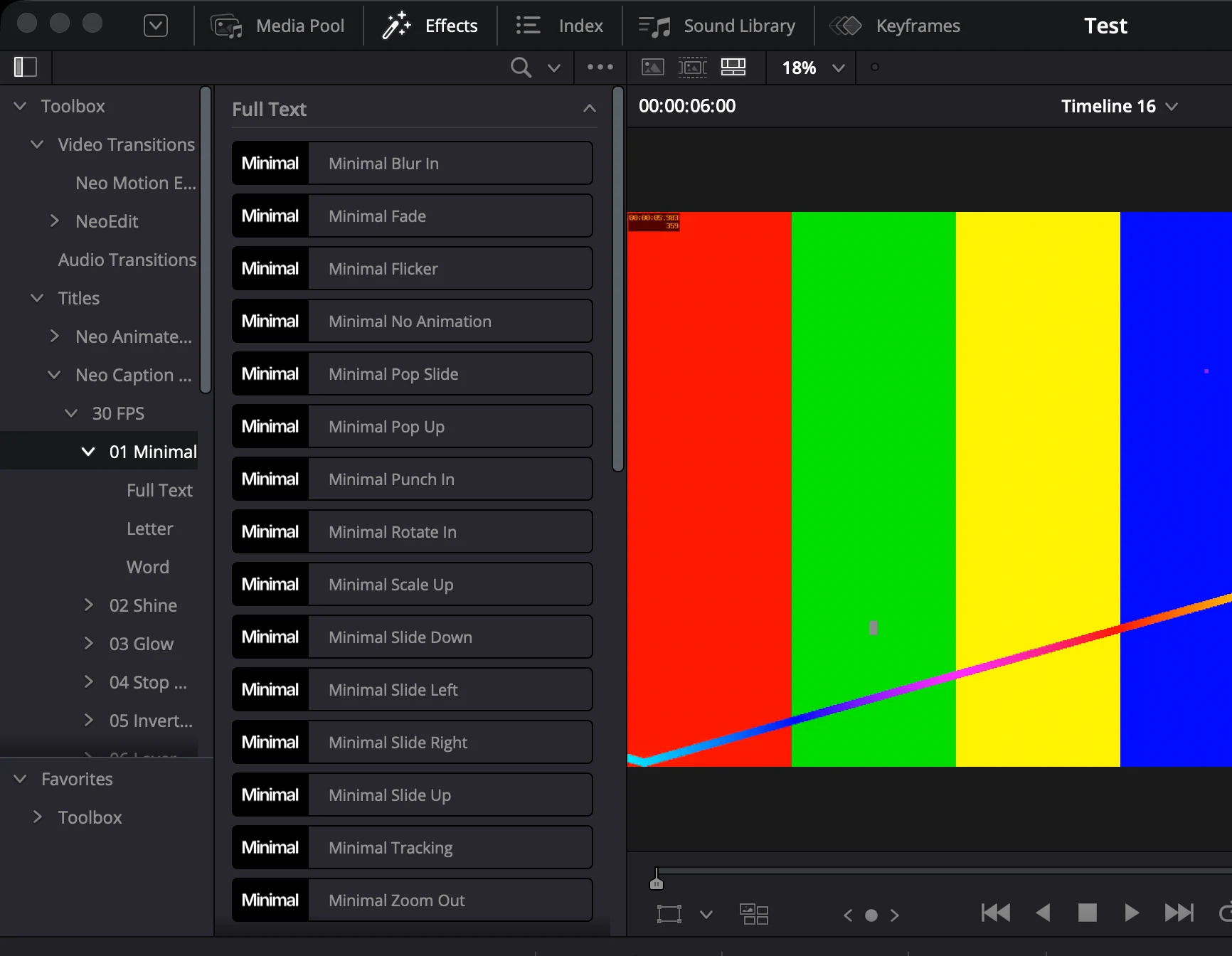
- 4
Type the line in the Inspector. Copy the caption along the timeline for the next lines.
If you own the Caption Creator Pack or the Full Stack Bundle, Captioneer opens in the free NeoEditFX app. It hears your timeline, writes the captions, lets you fix words and pick a look, and puts it all on your DaVinci Resolve timeline as Text+ titles. Captioneer works with DaVinci Resolve Studio.
Which way of adding captions fits you?
| Way | Writes the words for you | Animated styles | Works in the free DaVinci Resolve |
|---|---|---|---|
| Create Subtitles from Audio | Yes | No | No, Studio only |
| Subtitle track by hand or from an .srt file | No | No | Yes |
| Text+ titles by hand | No | You build them | Yes |
| Caption Creator Pack presets | No | 272 captions in 10 styles | Yes |
| Captioneer in the NeoEditFX app | Yes | Uses the pack's caption looks | No, Studio only |
Questions
- Can the free DaVinci Resolve make automatic captions?
- No. Create Subtitles from Audio is in DaVinci Resolve Studio only. In the free version you type the subtitles or import an .srt file.
- Do the Caption Creator Pack presets work in the free DaVinci Resolve?
- Yes. The caption looks, hooks and shaders work in both the free DaVinci Resolve and Studio. Captioneer, the auto caption tool in the app, works with DaVinci Resolve Studio.
- Are the fonts included?
- Yes. The Caption Creator Pack comes with the fonts its captions use.